Adding Attachments
Attachments let you add documents, screenshots, audio clips, and notes to a conversation. FlowDown processes each file on-device and sends structured context to the model together with your prompt.
Availability
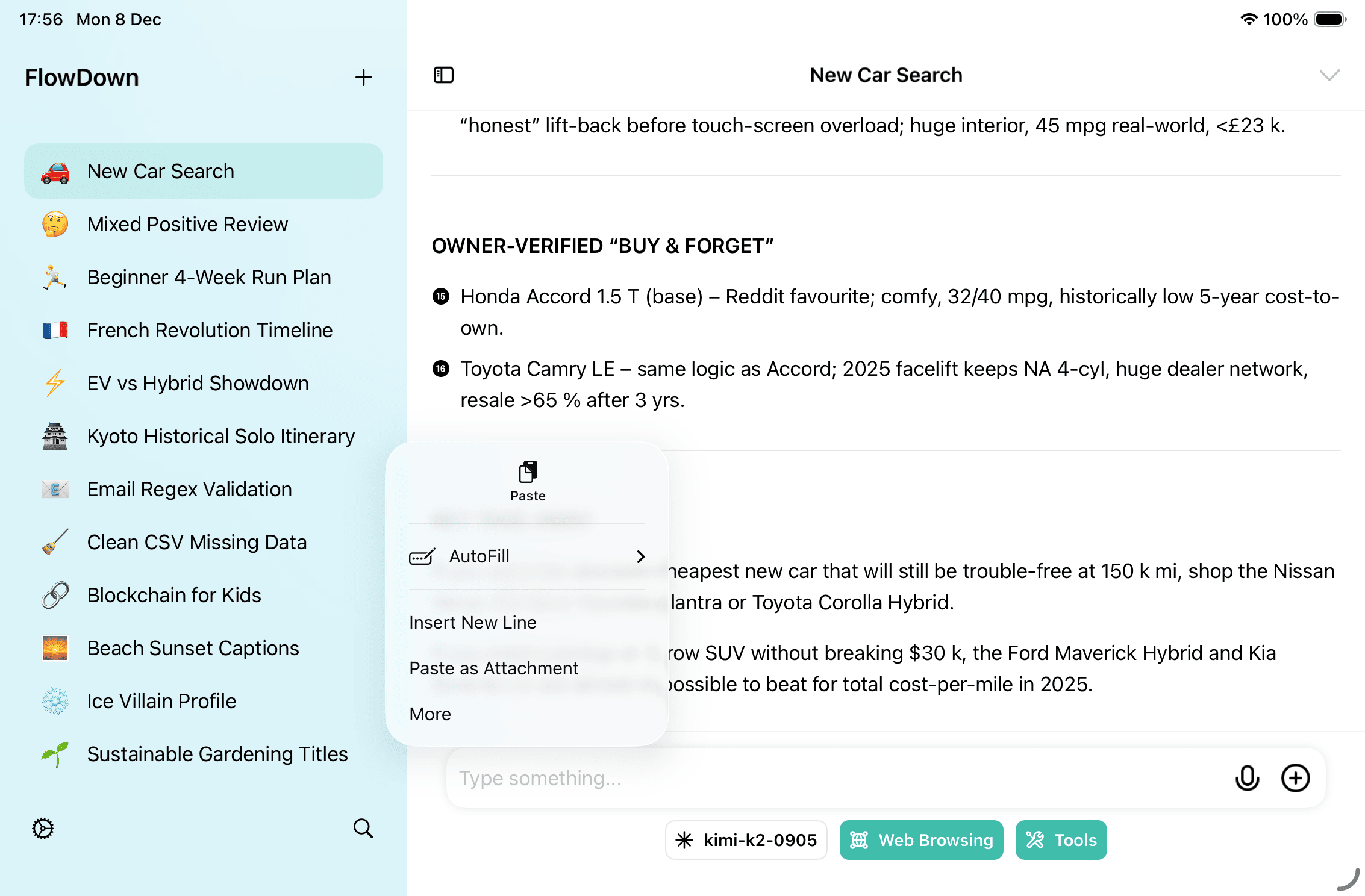
- Tap the + button above the composer to manage attachments, or drag and drop/paste files directly.
- Supported formats: plain text/Markdown, PDF, common images (PNG/JPEG/WebP/HEIC), and audio (m4a/wav; other audio is transcoded automatically). Unsupported formats are skipped.
- Attachments work with every model. Choose a Visual model for images and an Audio model for audio clips.
Processing Pipeline
- Import and archive – Extract text, alt text, and metadata locally by file type. PDFs import as text or convert to per-page images; audio is transcoded to a compact WAV.
- Context assembly – Each attachment becomes a user message before your prompt:
- Text/PDF/web:
[filename]plus extracted text. - Images: visual models receive the image directly. Non-visual models receive no image; a hint under the input box asks you to switch models before sending.
- Audio: audio-capable models receive a base64 WAV plus the description; other models use your description or note that the audio was skipped.
- Text/PDF/web:
- Send to the model and tools – FlowDown streams the prompt and attachments (including earlier turns) to the selected model; tools see the same context.
Use Attachments Effectively
- Add only files relevant to the current question; large or unrelated attachments raise token costs and distract the model.
- For multi-page PDFs, mention page numbers or sections in your prompt.
- When comparing multiple files, include them in one message so they share context.
- If a reply seems off, remind the model to review the attachment section or resend with clearer instructions.
Troubleshooting
- Upload failed: Usually due to limited storage or unsupported formats; convert to PDF or Markdown and retry.
- Sync differences: Try toggling iCloud Sync off and on under Settings → Data, or use Delete iCloud Data to clear and resync.
- Privacy review: Attachments leave the device only when you use cloud models, tool calls, or iCloud sync.