Configure Cloud Models
FlowDown supports any OpenAI-compatible HTTPS service using either chat completions or responses.
Create or import a model
- Open Settings → Model.
- Tap the + in the top-right corner.
- Under Cloud Model, choose Empty Model to start from scratch.
- To reuse saved profiles, select Import Model → Import from File and load an exported
.fdmodelor.plist.
Connect your provider
- Create a blank profile or open an existing one.
- Enter the full inference URL (for example,
https://api.example.com/v1/chat/completionsor/v1/responses). FlowDown auto-detects and sets Content Format; switch it manually if detection is wrong. - Set the model identifier. Tap the field to Select from Server, which calls the model list endpoint (defaults to
$INFERENCE_ENDPOINT$/../../models; adjust if your provider uses a different path). - Enter the Authorization token, which is sent as
Authorization: Bearer <token>, and add any required custom headers. Custom headers can override Authorization for other authentication schemes. - Add JSON in Body Fields. The quick menu inserts reasoning toggles (
enable_thinking/reasoningwith budgets), sampling parameters, input/output modalities, or provider flags. - Toggle capabilities (Tool, Vision, Audio, Developer role), set context length and nickname, then save.
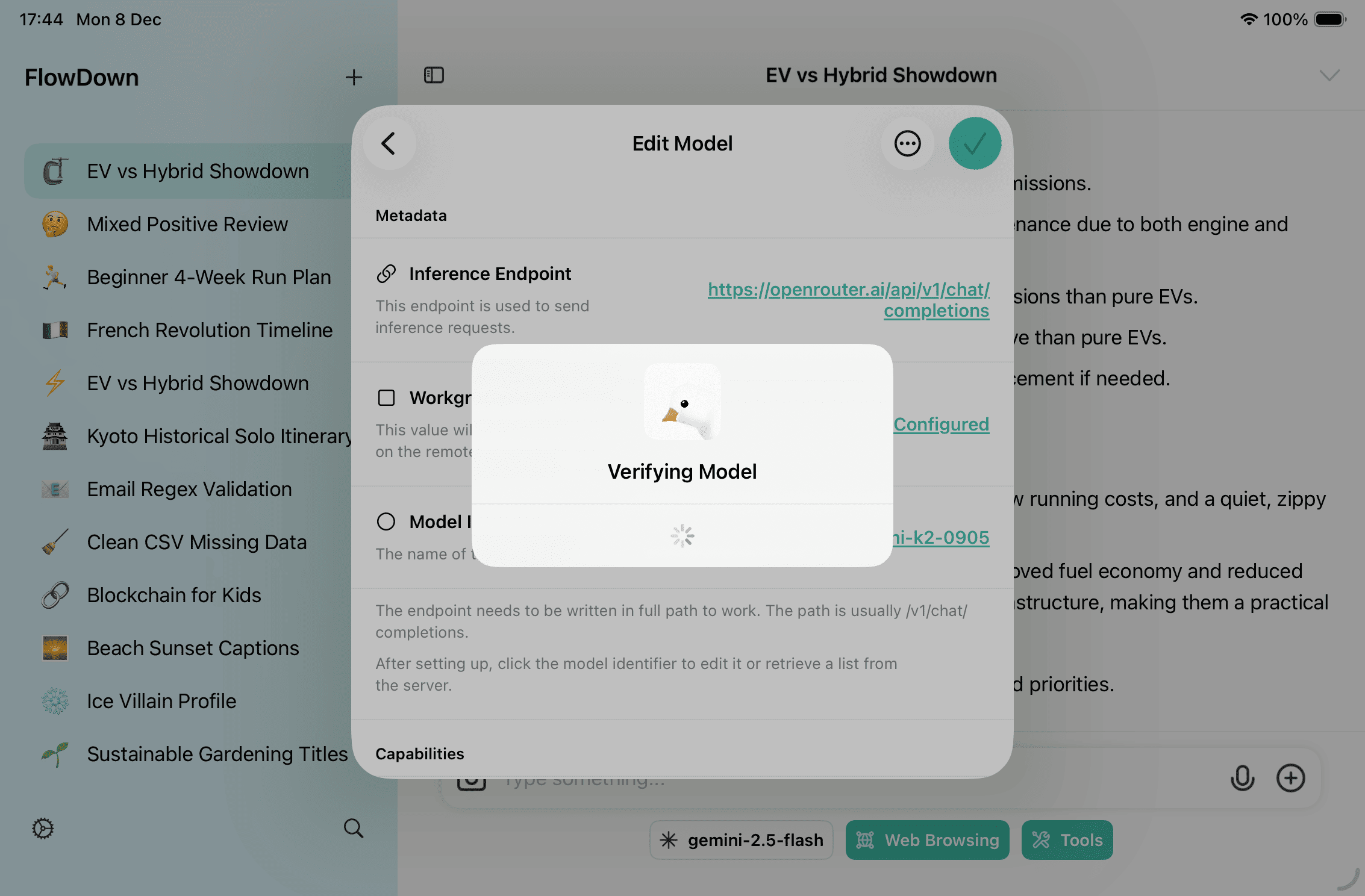
Tip: In the editor,
⋯lets you Verify model (connectivity), Duplicate, or Export model for version control.
Best practices
- Endpoint & format: keep the inference URL aligned with Content Format (chat completions vs responses) to avoid HTTP errors.
- Model list: configure the model list endpoint and use Select from Server instead of typing IDs.
- Body fields: add provider-specific keys (reasoning budgets,
top_p/top_k, modalities, etc.) via Body Fields, ensuring valid JSON. - Backups: model definitions sync with iCloud and database exports. Before major edits, run Settings → Data → Export Database.
Advanced: Custom / Enterprise Setup
For private deployments or bespoke gateways. Connect only trusted endpoints—misconfigurations can leak data or incur costs.
-
Create: Settings → Model → + → Cloud Model → Empty Model. Edit inline or export
.fdmodel, tweak externally, then re-import. -
Key fields (unused fields can be empty strings/collections):
Key Purpose endpointInference URL such as /v1/chat/completionsor/v1/responses; must matchresponse_format.response_formatchatCompletionsorresponses, aligned with the endpoint.model_identifierModel name sent to the provider. model_list_endpointList endpoint (defaults to $INFERENCE_ENDPOINT$/../../models) for Select from Server.token/headersAuth info; custom headers can override the default Authorization: Bearer ....body_fieldsJSON string merged into the request body—use it for reasoning toggles, budgets, sampling keys, modalities, etc. capabilities/context/name/commentDeclare capabilities, context window, display name, and notes to drive UI toggles and trimming. -
Verify & audit: after saving, run
⋯ → Verify model; audit calls in Settings → Support → View Logs. Remove/disable unused configs to avoid accidental calls.