Model Vision
Overview
FlowDown supports visual understanding through local MLX or cloud vision models. Images go straight to the selected model, which must support Vision. EXIF data is always stripped from images. When Settings → General → Editor → Compress Image is on (default), images are also resized to ~1024 px.
Quick Start
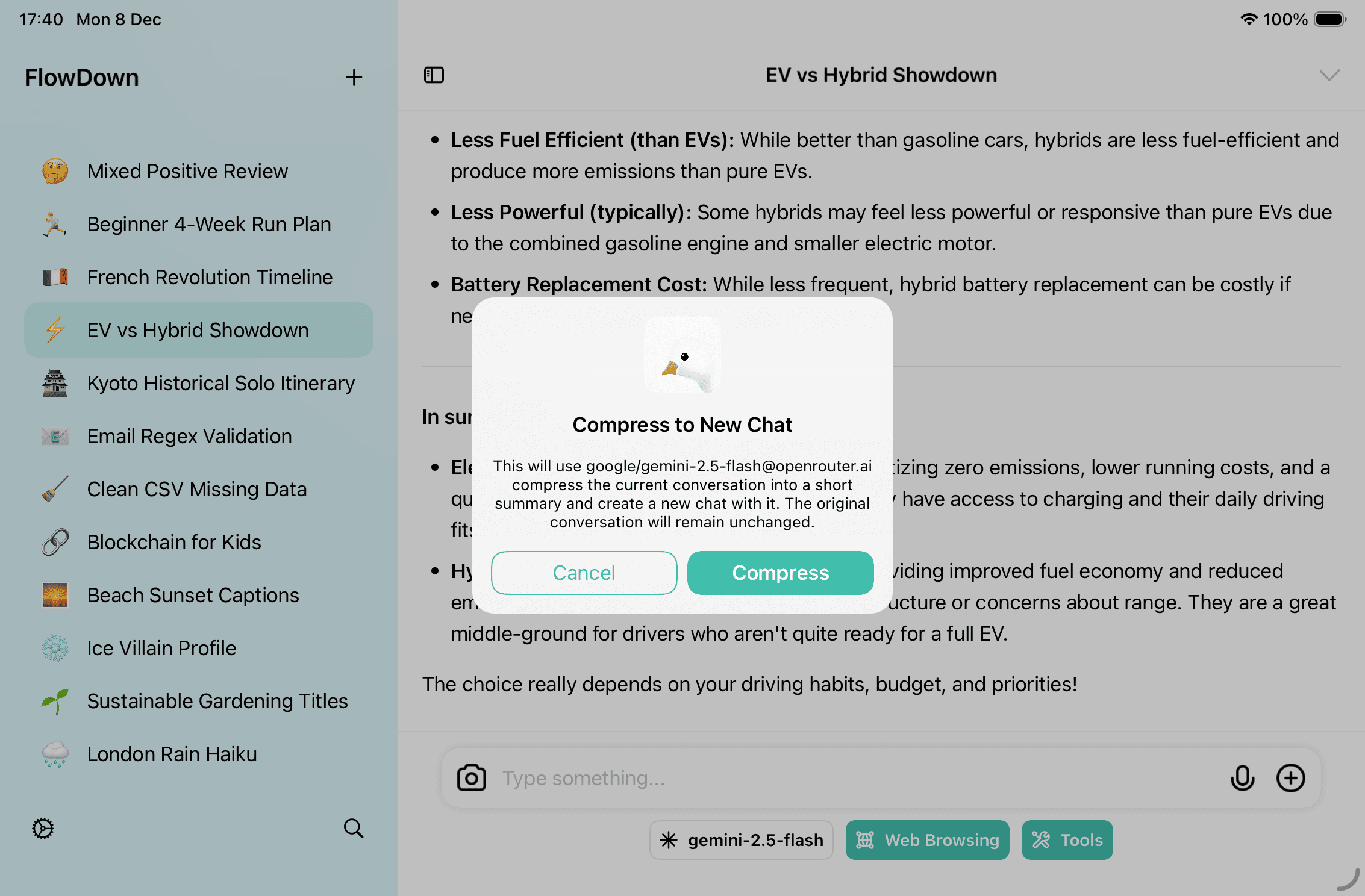
- Click the + beside the composer, or drag/paste files into the input box.
- On iOS/iPadOS, choose Take Photo, Photo Library, or Files; on macOS, pick any system-supported file.
- Send your question/instruction and wait for the analysis result.
Thumbnails appear above the composer; tap or hover to preview, rename, or remove attachments.
Configuration Checklist
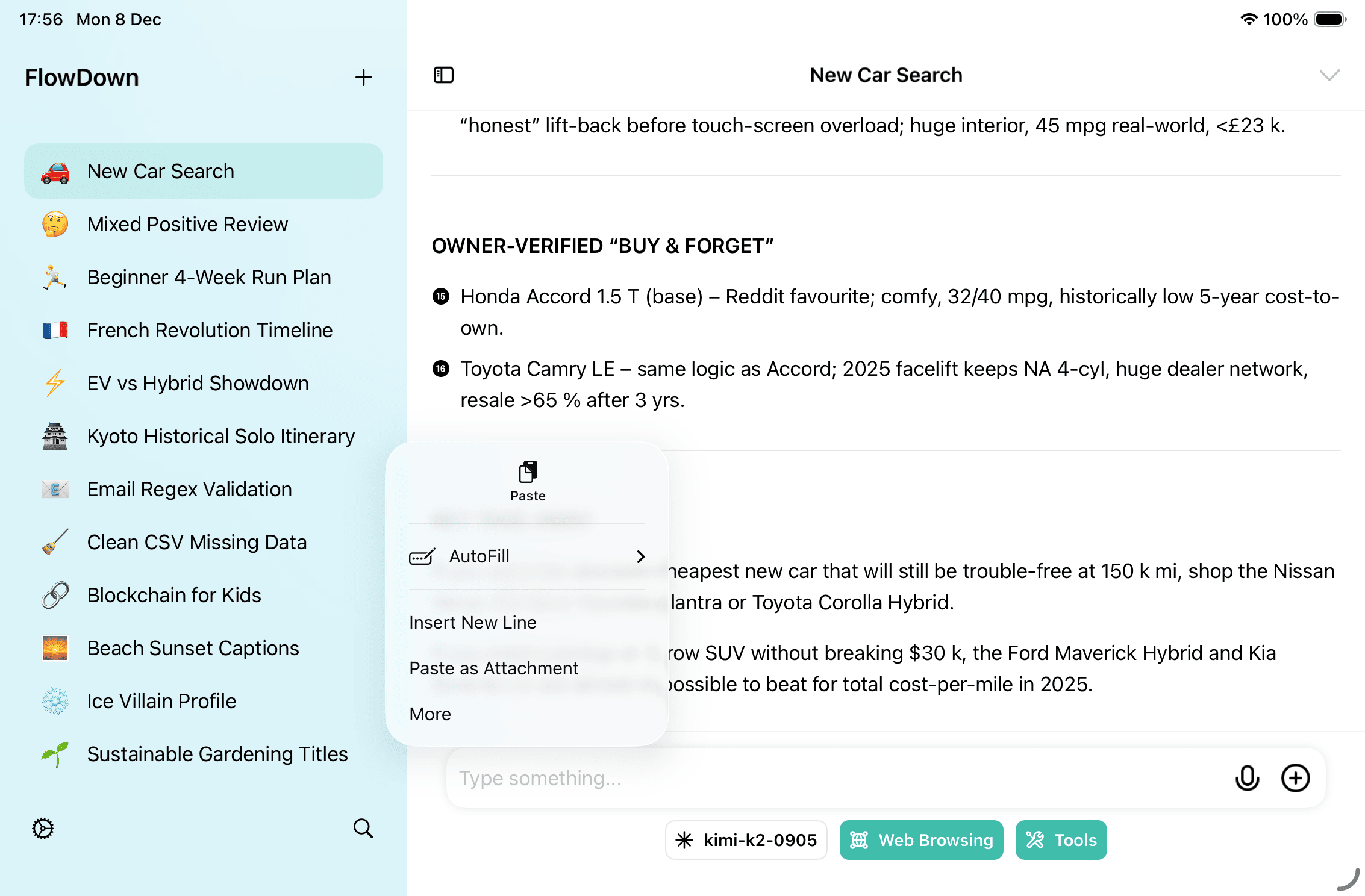
- Enable Vision capability: Turn on Vision under Settings → Model (local) or on the cloud model edit page. Forcing Vision on unsupported models will fail.
- Compress Image: Settings → General → Editor → Compress Image, on by default to shorten uploads and remove EXIF data.
How It Works
- Vision models: receive the image directly, plus any text stored with the attachment.
- Text-only models: receive no image and no recognition step runs. A hint appears under the input box while the draft holds an image, and the send button stays disabled until you switch to a Vision model or remove the image.
Images already in a conversation follow the same rule. If you switch to a text-only model later, it receives any text stored with the attachment; an image without stored text is left out of the request.
Images are always EXIF-stripped; compression depends on the Compress Image toggle.
Prompting & Verification
- Be explicit: “Summarize this whiteboard,” “Compare these two screenshots,” or “Convert the table to CSV.”
- Reference filenames, e.g., “In invoice.png, what is the payment due date?”
- If results look off, ask the model to re-check attachments or add more context and resend.
- Delete attachments from the message menu if you don’t want them kept.
Local MLX Regression Checks
With a multi-image vision checkpoint such as Qwen3.5, enable Vision to exercise the local model directly:
- Run the model verification, then start a new conversation and send a text-only message.
- Attach one image and ask about it using an ordinary prompt. Do not insert model-specific image tokens.
- Send a text-only follow-up about that image, then attach two images and ask the model to compare them.
- Confirm that the image turns and text-only turns complete without a placeholder/frame-count error.